The Find Grid
If only one person fits the specifications you entered Using the Find Function, then only that person's record will appear on The Individual Record screen. If more than one person meets the criteria of the Find, then this list of people will appear on The Find Grid including the number of records meeting your search criteria (listed at the very top of the screen).
The Find Grid is a very convenient way to work with a specific list of people. You can view and manipulate the data in many records at the same time. There is usually much more information on The Find Grid than you can see at once; if you click the right arrow on the scroll bar at the bottom of the screen, then The Find Grid will scroll to the right and show you the other fields. The way you view the results of a Find is totally up to you; you can Organize the Find Grid Columns / Fields as well as Group & Sort the Find Grid Records.
Pictured below is an example of The Find Grid:
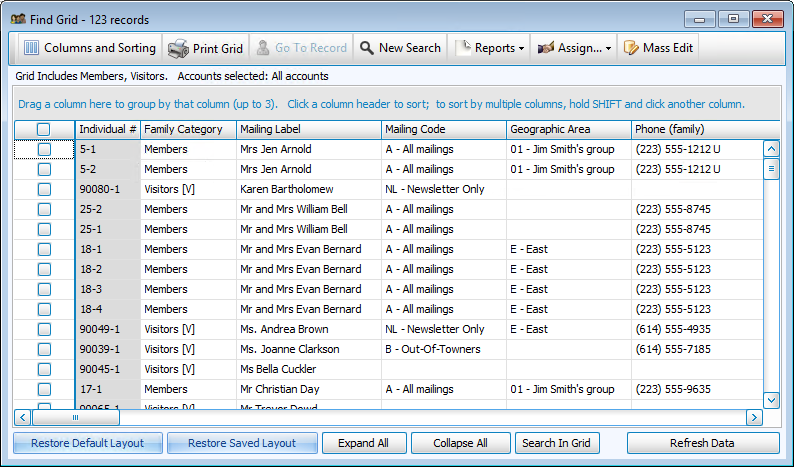
For the sake of clarity, while working in The Find Grid, note the difference:
-
Columns/Fields
-
Records
Are the vertical columns of information whose titles appear at the top of The Find Grid. Examples include: Mailing Label, Address Line 1, Family Number, First and Last name, Directory/Report Order, etc. You can Organize the Find Grid Columns / Fields to display only the information you want to view in the order that you want to see it.
Are the listings for each Individual or Family on The Find Grid. Records stretch horizontally in rows across The Find Grid. You can Group & Sort the Find Grid Records to view people grouped by their shared characteristics (e.g. Family Categories, status code, Include on Directory, etc.) and in an Ascending or Descending order based on any criteria (e.g. last name, giver number, zip code, Directory/Report Order, etc.)
Both in this picture and in your system, when you get to The Find Grid, you
may notice that it seems like there are duplicate records. In most cases,
there are not. If your Find included information from The Individual Record,
it may appear that way because there can be many individuals in the same
Family. The information that appears on The Find Grid by default is family
information, such as: Family Number, Family Categories, Mailing Label, Mailing Code, etc. Because the Family Record Fields are the same for all individuals
in the family, that family
information will be repeated for each individual family member's record causing it to appear as though there are duplicate records, when in actuality you are simply seeing different people who share the same characteristics.
At the top of The Find Grid screen is a Button Bar containing buttons to perform specific tasks, described below. Under the Button Bar is a row with the description of the search criteria that you entered for this Find and below the description is and area where you can drag the columns / fields to determine the sort order by which you are view the Find results:
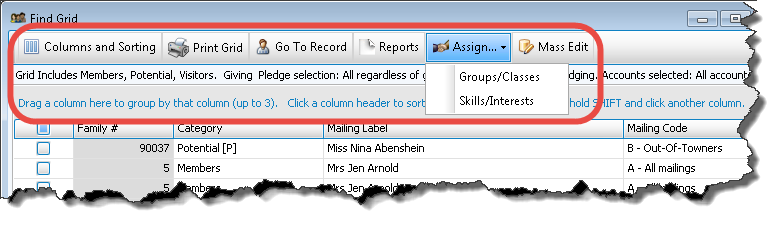
 Button Bar
Columns and Sorting
This function allows you to both Organize the Find Grid Columns / Fields as well as Group & Sort the Find Grid Records.
Print Grid
This allows you to Print the Find Grid exactly as you are currently viewing it.
Go To Record
To move from The Find Grid to a certain family or individual record, put a  checkmark on that record to select it, then click the Go To Recordbutton. That person’s record will appear on The Family Record and The Individual Record screen. To return to The Find Grid, click the
  button at the top of The People File. It appears between the Find button and the Categories button after you have performed a Find. The same records will appear until you perform another Find.
Reports
This allows you to Print the Find Grid results in similar report formats to the Reports / Directory / Exports option but containing only the results from Using the Find Function.
Assign
This will take you to Group / Skill Assignment from the Find Grid to assign people from the Find results into either Groups / Classes or Skills / Interests.
Mass Edit
The Mass Edit allows you to alter the records of many individuals in one fell swoop.
Editing Records in The Find Grid
You can edit a record from The Find Grid just as easily as you can from the
actual record screen:
- Click the field that you wish to edit.
- A cursor will appear in that field.
- Make your changes. To delete data that is already in the field, use the Delete or Backspace keys on your keyboard. Once you move the cursor anywhere outside that field, your changes will be saved.
- If that field is a List field, then a
 dropdown button will appear on the right side of that field;
clicking on that arrow will list
all of the possible codes and definitions. You may select a different choice from the list.
dropdown button will appear on the right side of that field;
clicking on that arrow will list
all of the possible codes and definitions. You may select a different choice from the list. - Your changes are saved when you move the cursor to another field.
- Any changes that you make here on The Find Grid will carry over to the The Individual Record and The Family Record.
- You may also edit records using Mass Edit or Group / Skill Assignment from the Find Grid.
At the bottom of The Find Grid screen are several additional buttons:
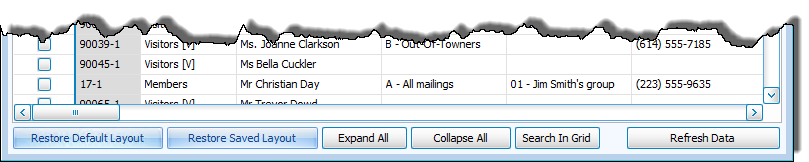
Restore Default Layout
This button will revert the view of The Find Grid back to the original system default selection and placement of columns/fields.
Restore Saved Layout
This button will revert the view of The Find Grid back to the specific selection and placement of Columns and Sorting that the specific Users most recently arranged.
Expand All and Collapse All
When you have chosen to Group & Sort the Find Grid Records, the information will be consolidated. Click the
expand button to the left of each row to view details (when expanded it will become a
collapse button). The Expand All and Collapse All buttons allow you to open or close all groupings (respectively) with a single click.
Search in Grid
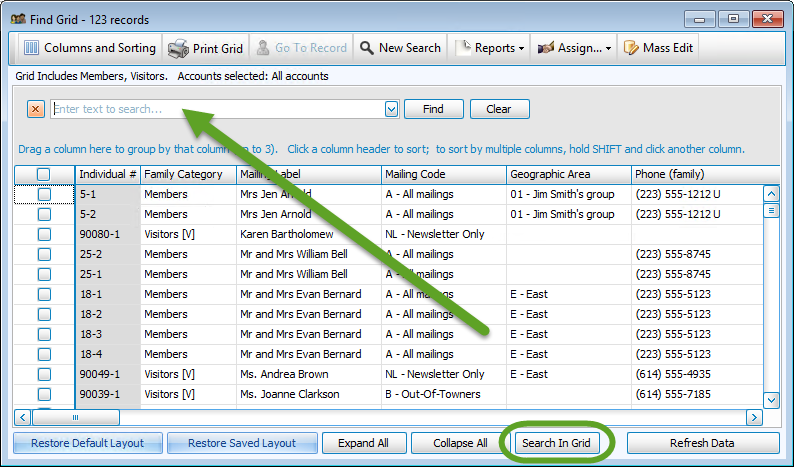
Clicking this button allows you to search within The Find Grid for anything you type in the box that appears at the top of the grid:
Refresh Data
This button will force Church Windows to re-read all of the information in each record in The Find Grid, updating the information to its most current state. This button would be useful after you have made changes to the information displayed in The Find Grid, and would be especially helpful if these changes would affect the sort order. Simply click Refresh whenever you want to make sure that the information showing is completely up-to-date. Keep in mind that if you have changed a person’s information in such a way that they no longer meet the criteria of your Find, then they will be removed from The Find Grid when you click Refresh.